
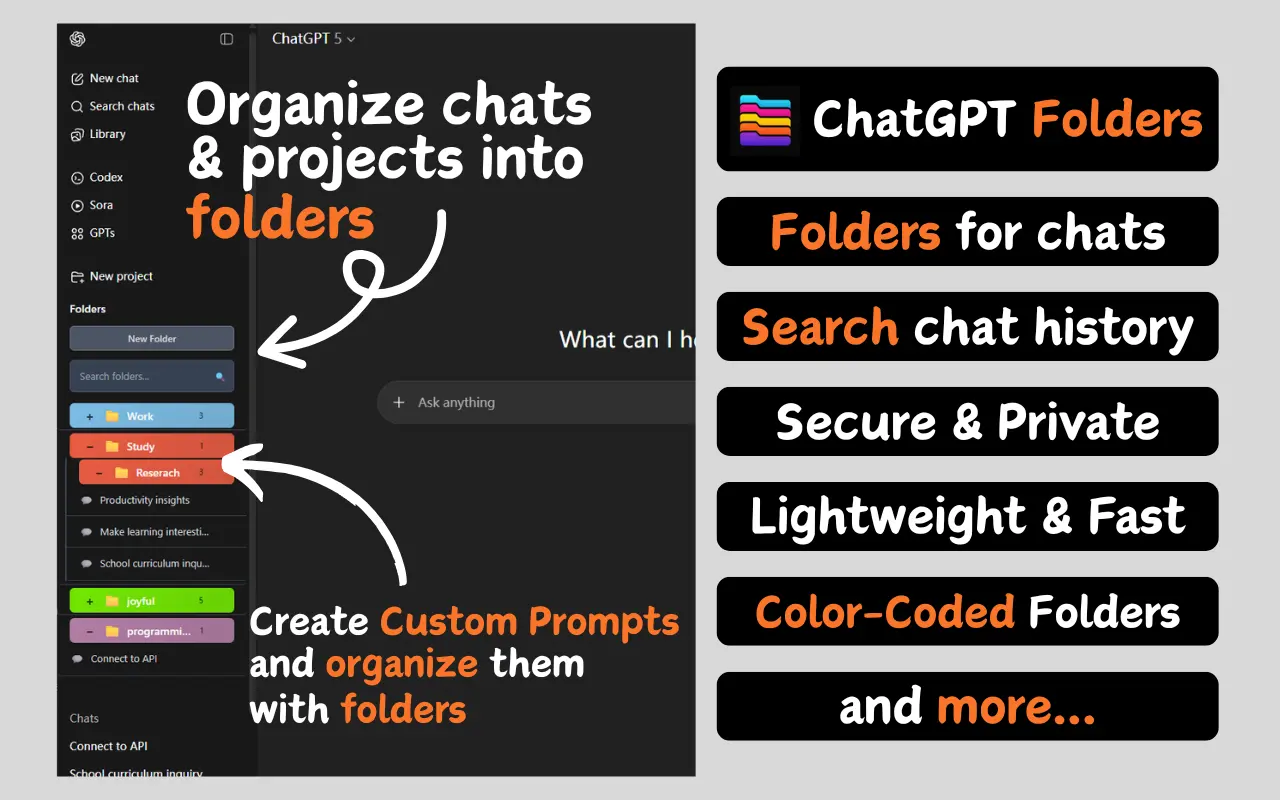
ChatGPT Folders is a browser add-on that provides ChatGPT users with a folder system to manage the growing number of chats. As the number of conversations a user has with ChatGPT gets larger, finding a specific history can become difficult. This tool solves this problem by allowing users to create folders and subfolders as if they were managing files on a computer, and drag and drop each conversation into them to categorize them. Users can also set different colors for folders to make categorization more intuitive. All data is saved on the user's own computer and is not uploaded to the web, ensuring privacy and security. The plugin supports Chrome and Firefox browsers, and is mainly aimed at content creators, programmers, researchers and other heavy users who need to handle a lot of work with ChatGPT.
Function List
- Unlimited Hierarchical Folders: An unlimited number of folders and subfolders can be created as needed for fine-grained management.
- drag-and-drop operation: Users can directly drag and drop the chat logs into the specified folder with the mouse, which is easy and intuitive to operate.
- color coding: You can set eye-catching colors for different folders to make them easy to identify and find quickly.
- Quick Search: Built-in powerful search function, you can quickly find what you need in all chats based on keywords such as title and content.
- Local storage of data: All folders and categorized data are saved only in the user's own browser, ensuring that the content of the conversation is secure and private.
- Bookmarking and filing: Important conversations can be bookmarked for quick access. For infrequently used folders, you can archive them to keep the main interface tidy.
- one-click installation: As a browser plug-in, the installation process is very simple, no complex configuration is required, and you can use it in the ChatGPT interface after installation.
- Cross-browser support: It supports the two major browsers, Chrome and Firefox, at the same time.
Using Help
The main function of ChatGPT Folders as a browser plugin is to be integrated into the official web interface of ChatGPT, allowing users to easily organize and categorize conversations. It is designed with the goal of making managing chats as easy as managing computer files.
Installation process
The installation process for this plugin is very straightforward, just add it to your browser.
- Visit the official website or app store:
- direct access
https://chatgptfolders.com/websites, the homepage usually has a prominent "Add to Chrome" or "Add to Browser" button. - You can also search for "ChatGPT Folders" directly in the Chrome Online App Store or Firefox Add-ons Store.
- direct access
- Add to Browser:
- On the plugin page, click the "Add to Chrome" (or Firefox) button.
- A confirmation window will pop up in your browser asking if you agree to the permissions required by the plug-in, click "Add Extension" to complete the installation.
- start using:
- After successful installation, open or refresh the ChatGPT web page (
chat.openai.com)。 - You'll notice that a new folder management screen has appeared in the left sidebar of the ChatGPT interface, above your chat log list, which indicates that the plugin has been successfully activated.
- After successful installation, open or refresh the ChatGPT web page (
Core Functions Operation Guide
1. Creating folders and subfolders
Creating folders is the first step in getting your organization started.
- Creating a home folder: In the Plugins area of the left sidebar of ChatGPT, find a "New Folder" button and click on it.
- Naming and Setting: You will be prompted to enter a name for the folder, such as "Work Projects" or "Study Notes". At the same time, you can choose a color code for this folder to make it easier to distinguish visually.
- Creating subfolders: If you want to create more detailed categories within a folder, you can right-click on the folder (or via the menu provided by the plugin), select "New Subfolder" and name it in the same way. This feature is very useful for organizing complex projects.
2. Managing chat logs
Group existing or new chats into folders that you have created.
- drag-and-drop filing: The easiest way to do this is to hold down a chat with the left mouse button and drag it directly onto the destination folder and release the mouse.
- batch management: The plugin supports batch operation, you can select multiple chats and drag them into the same folder at once, which greatly improves the organizing efficiency.
3. Search and find
When you have accumulated a large number of chats, it is vital to find the information you need quickly.
- global search: The plugin provides a search box where you can enter keywords. It will search both the title and specifics of all chats to quickly locate relevant conversations.
- Filter by Folder: You can also narrow down your search by clicking on a folder first and viewing and searching only inside that folder.
4. Advanced functions
- Rename and deleteJust like managing computer files, you can right-click on a folder or chat log at any time and select "Rename" or "Delete" to make adjustments. Please note that removing a chat log from a folder in the plugin will not delete it completely from ChatGPT.
- Data export and import: Some versions of the plugin support exporting your folder structure as a file backup, making it easy for you to quickly restore your category settings after changing computers or reinstalling browsers.
The entire process of using ChatGPT does not require learning complex commands and is operated entirely through a graphical interface, making managing ChatGPT conversations easy and organized.
application scenario
- project management
For users who need to work on multiple projects at the same time, such as software developers or marketers, they can create a dedicated folder for each project. For example, developers can create folders for "front-end code optimization" and "back-end API debugging"; marketers can create folders for "social media copywriting", Marketers can create folders such as "Social Media Copywriting", "Campaign Planning", etc., where all relevant AI conversations and generated content can be organized for easy review and discovery. - Study and Research
Students and researchers have a lot of questions and answers with ChatGPT when they are learning something new or doing research on a topic. They can create folders according to different disciplines or research directions, such as "Quantum Physics Notes", "Machine Learning Materials", "Historical Dissertation Materials" and so on. In this way, all relevant knowledge points and references are clearly organized for subsequent reports or papers. - content creation
Writers, bloggers and other content creators can use this tool to manage their creative inspiration and materials. You can create folders such as "Novel Outline", "Blog Post Drafts", "Video Scripts", etc. to separate different stages and types of creative content, making the entire creative process clearer. You can create folders for - Personal daily use
For ordinary users, it can also be used to differentiate conversations for different purposes. For example, you can create personal life folders such as "Travel Plan", "Recipe Collection", "Health Consultation", etc., so that work and life-related AI records do not interfere with each other, and it is more convenient to find them. It is also more convenient to search.
QA
- Is this plugin free?
ChatGPT Folders offers a free-to-use basic version that includes core features such as folder creation, color marking, and more. For users with higher needs, a premium version may be available that requires a paid upgrade. - Is it safe to use this plugin? Will my chat data be uploaded?
The plugin is secure. According to the official instructions, all folder organization data is stored on the user's own computer (local browser) and the plugin developer does not access, collect or upload the content of the user's ChatGPT conversations, which ensures the user's privacy and security. - What browsers does it support?
Currently it supports two major browsers, Google Chrome and Mozilla Firefox. - How does it differ from the official ChatGPT categorization feature?
Compared to the native organizing features that ChatGPT may offer, ChatGPT Folders typically offers more powerful organizing capabilities such as unlimited levels of subfolders, more intuitive color marking, batch management, and more powerful search filters, providing a professional-grade management experience for heavy users.