Agentation is a lightweight assistive tool designed for front-end developers to solve the problem of human interaction with AI programming assistants such as Claude The problem of “missing context” when communicating UI issues between Code, Cursor, and Windsurf. In the traditional development process, when a developer finds a styling error or interaction bug on a web page, it is often difficult to accurately describe to the AI in natural language the exact location of the element in the codebase. Agentation follows the principle of “what you see is what you get” by allowing users to click on elements on a web page to annotate them, automatically capturing the class names, selectors, and hierarchical positions of the component and combining these technical details with the user's modifications into a structured Markdown format. The user simply copies this information to the AI, which uses this precise location information to quickly index the corresponding source file in the code base and fix it. The tool is currently based on React Built with zero additional dependencies and completely independent of specific AI models, any AI Agent capable of reading text can be used.
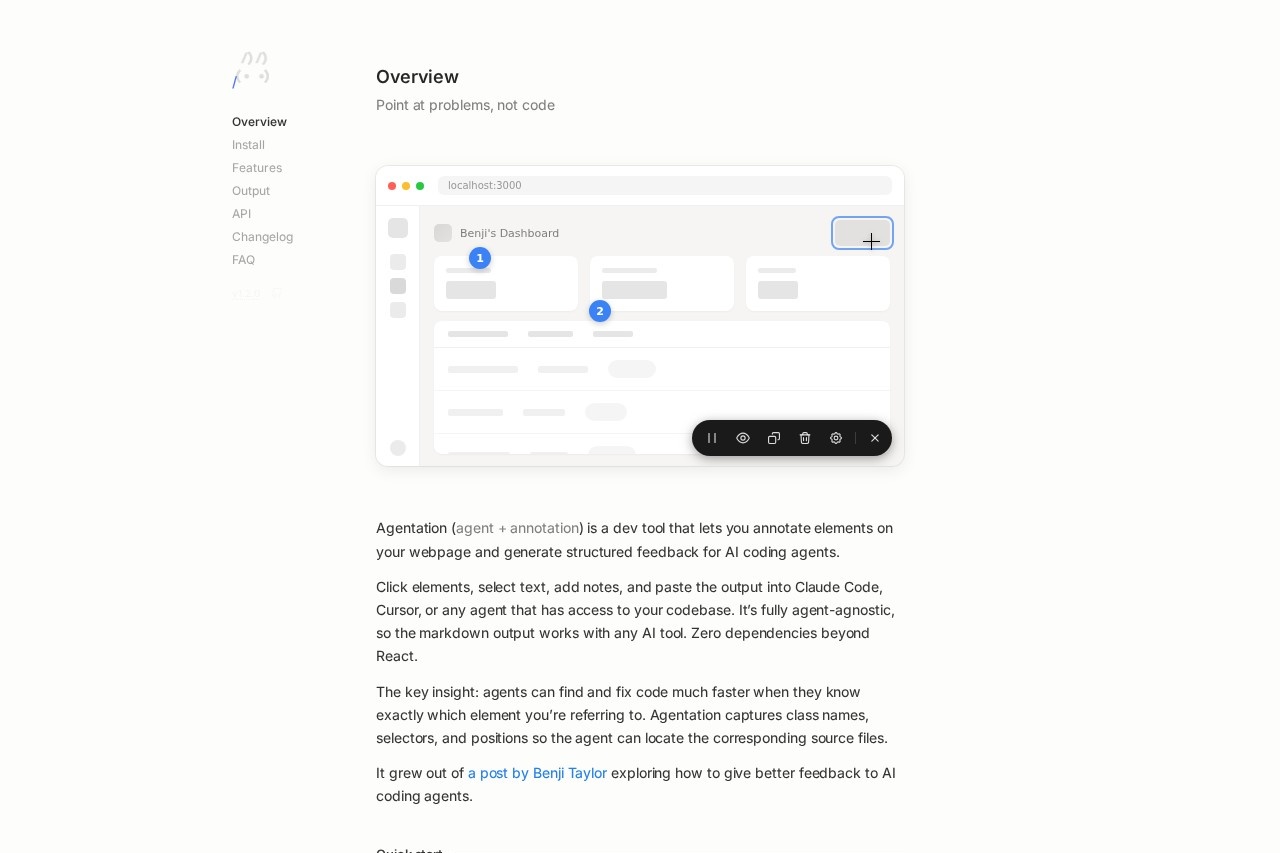
Function List
- Visual Element Labeling: Select any DOM element (e.g. button, card, text paragraph) directly on a running web page by hovering and clicking.
- Automatic extraction of technical parameters: When an element is selected, the tool automatically captures the element's CSS class name, ID, hierarchical path (Selectors), and other key positioning information.
- Structured Feedback Generation: Support for adding custom text descriptions (e.g., “change color”, “fix spacing”) to selected elements and generating Markdown text with technical context in a single click.
- Animation pause debuggingPause Animation: Provides a “pause animation” feature that makes it easy to capture and annotate dynamic effects or frame-specific UI issues.
- Precise positioning of text: Supports directly selecting specific text passages in a web page for error correction, so that AI can quickly locate the position of the component where the text is located.
- cross-platform compatibility: The generated output is formatted as standard Markdown and seamlessly supports Claude Code, Cursor, Windsurf or any LLM programming tool that supports contextual input.
Using Help
Agentation's core design concept is “lightweight” and “seamless integration”, it does not require complex background configuration, mainly in the form of React components integrated in the development environment. Below is a detailed guide on how to use Agentation:
1. Activation and activation
Agentation is currently targeted at the desktop browser environment. In projects that integrate Agentation (usually in development environments), a tool icon will appear in the bottom right corner of your web page.
- activation tool: Click on the Agentation icon in the bottom right corner of the screen, or use the shortcut keys (if configured) to activate the annotation mode. At this point, when you move the mouse, each HTML element on the page (e.g., the
<div>、<button>、<p>) will be highlighted, indicating that they are in a state where they can be selected.
2. Labeling of target elements
When you find something in the page preview that needs to be changed (e.g. a button is the wrong color, or a paragraph of text is typographically incorrect):
- Selection of elements: Hover over the target element and left click to “lock” it.
- Add Feedback: When clicked, an input box will pop up. Enter your changes to the element, for example: “The rounded corners of this button should be 8px” or “Clicking on this card does not respond”.
- multipoint labeling: You can click on a number of different locations on a page in succession to collect multiple modification requests at once. For example, you can point out a height problem in the navigation bar and a link error in the footer at the same time.
3. Handling dynamic content
For pages that contain complex animations or transitions, capturing specific states is often difficult.
- Pause animation: Click on the “pause” icon (usually a freeze symbol) in Agentation's toolbar. This will force the CSS animation and JS rendering loop on the page to stop, leaving the page at the current frame.
- accurate labeling: While the page is static, you can comfortably select dynamic elements that normally flash by for markup.
4. Generating and exporting contexts
After completing the labeling of all the questions, this information needs to be passed to the AI:
- Generating reports: Click the “Copy” or “Export” button on the toolbar, and Agentation will take the path of your selected element (e.g.
.sidebar > .nav-actions > button.primary) and your typed notes into a clearly formatted Markdown text. - Content Preview: The generated text contains not only your natural language descriptions, but also machine-readable code locators. This is the key to AI's ability to find files with precision.
5. Driving AI repair code
The final step is to connect your AI programming assistant:
- Paste command: Open the AI tool you are using (e.g. Cursor Chat window, or Claude Code (the terminal interface), paste the text you just copied.
- Perform fixes: Once AI receives the information, it no longer needs to guess which file “that blue button” is, it will directly conduct a global search (Grep) through the codebase by class name and selector, quickly locate the corresponding React component or CSS file, and generate the fix code based on your feedback.
application scenario
- UI style fine-tuning
Front-end developers often need to adjust the Padding, Margin or color of components. With Agentation, developers don't need to manually look up the corresponding CSS file name of the component, just click on the component in the browser and note “Padding increased to 20px”, then AI can directly locate the style file for modification. - Bug fixes for complex components
In extremely deep React component trees (such as a Button in a Modal nested in a Sidebar), manually searching for the source files can be very time consuming, and Agentation generates precise DOM paths to help the AI instantly find the component's exact location in the project. - Batch proofreading of copywriting content
When there are multiple spelling errors in a web page, non-technical people (e.g., product managers or designers) who use the tool in a development environment can directly select the incorrect text and enter the correct copy, and the generated feedback is directly handed over to the AI for replacement, avoiding ambiguity in verbal communication.
QA
- Q: Does Agentation require back-end service support?
A: No need. It is a pure front-end tool, usually introduced into your project as a React component with zero back-end dependencies and all data processing done locally in the browser. - Q: Does it only support React projects?
A: The current official documentation mainly shows the use of the React environment, but the core logic (DOM selection and path generation) is common. However, the core logic (DOM selection and path generation) is generic, but when introduced as an npm package, it is mainly adapted to the React ecosystem. - Q: Why does generated feedback make AI work better?
A: Large models (LLMs) may be smart, but they can't see your screen. The traditional prompt “Fix the button in the upper right corner” is very vague..header-right .login-btnThis precise characterization of the code allows AI to be used as it would be withgrepCommand-like direct retrieval of the code base eliminates the “illusion” and guesswork. - Q: Do you charge for this tool?
A: The tool currently exists as an open source or free development tool with the primary goal of optimizing the workflow experience for AI-assisted programming.