
Browse AI allows you to extract and monitor data from any web page in minutes without code. The bots you train to operate websites just like humans do will allow you to extract the most accurate data with the least amount of effort. This guide introduces some key concepts to help you get started. 1) Bots &nb...
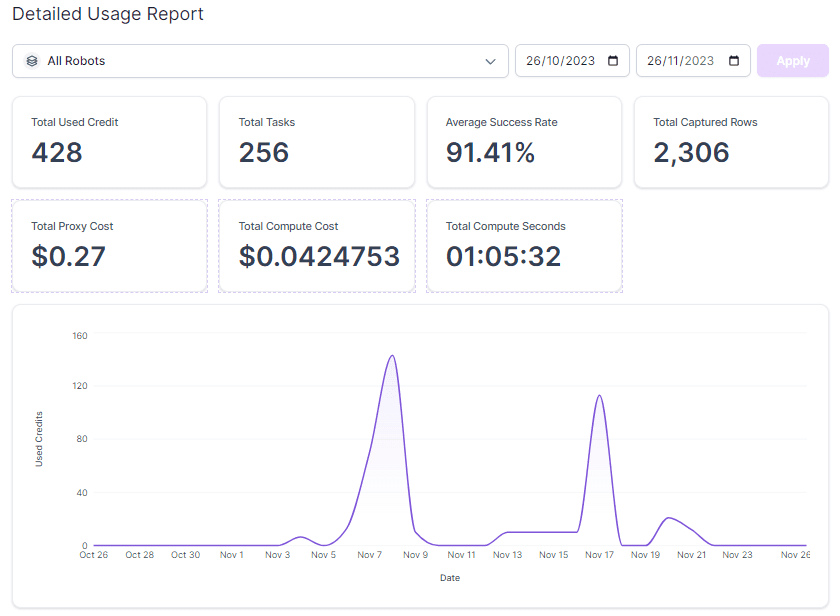
Browse AI's newest feature, Detailed Usage Reports, now allows you to monitor your bot's usage and performance in detail. You'll be able to visualize the total number of points you've consumed, the number of tasks you've completed, the average success rate of those tasks, the total number of rows of data captured, the amount of time consumed to complete the task, and the total cost of the calculation and proxy services. Make your...
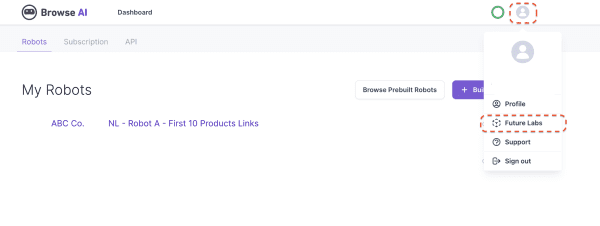
Browse AI has launched a new tool, Robot Studio, which is a different solution than Chrome extensions. The highlight of it is that it doesn't require any browser extensions to be installed, which means you can use it on browsers other than Chrome! ✨ Also as a reminder, it's still in beta...
On Browse AI, there are two ways to create bots: 1. using [pre-built bots]: this does not require any browser plugins to be installed as the bots are already pre-trained, but you can only use bots that are available in the library. 2. Create a customized bot by recording a task: Currently this...
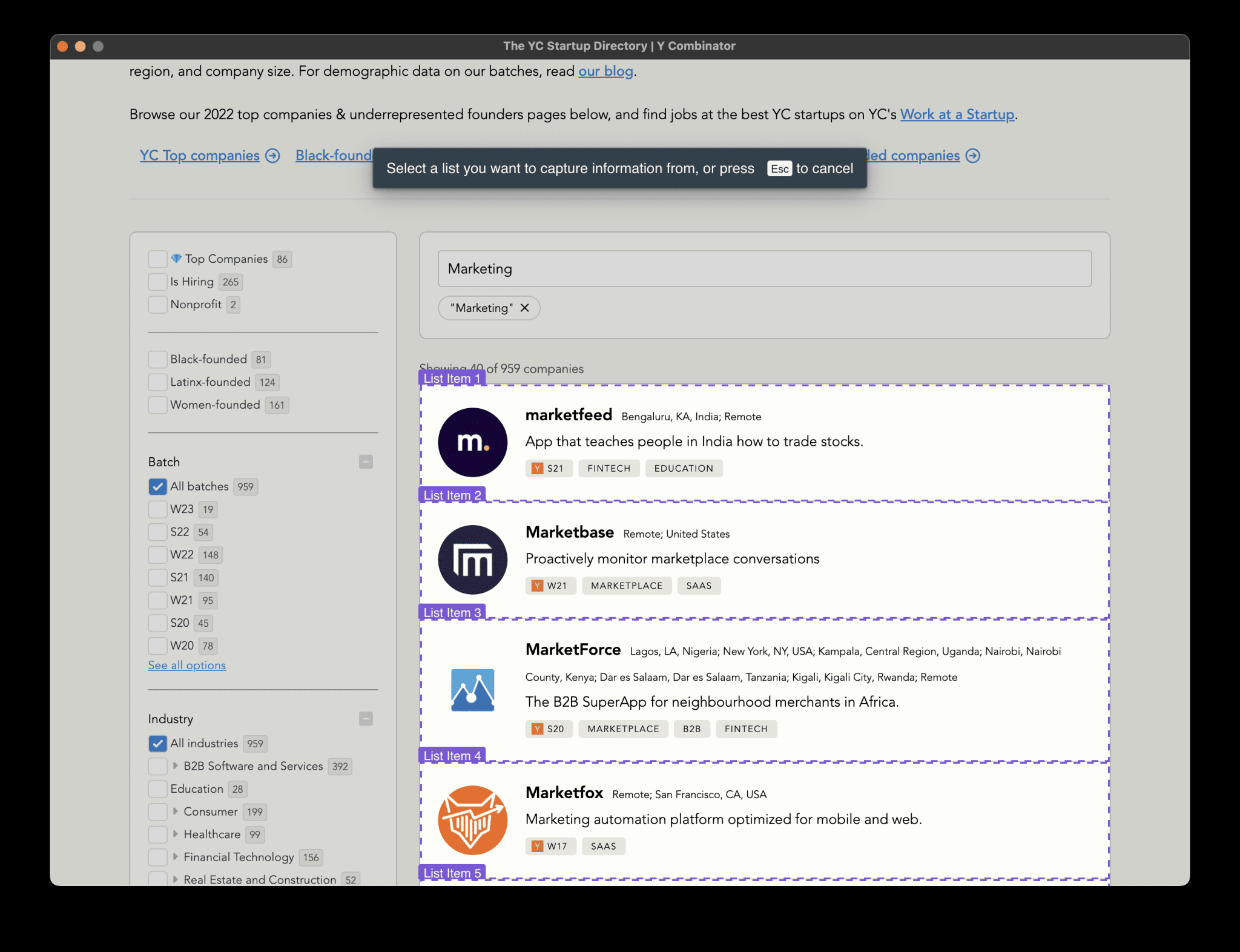
When you record a task, your bot learns every action you take, including all clicks and form fills. In addition, the robot automatically translates your form-filling information into dynamically adjustable input parameters that can be adjusted as needed each time you perform a task. You can also set up multiple monitors on the same robot, each with its own input parameters. &...
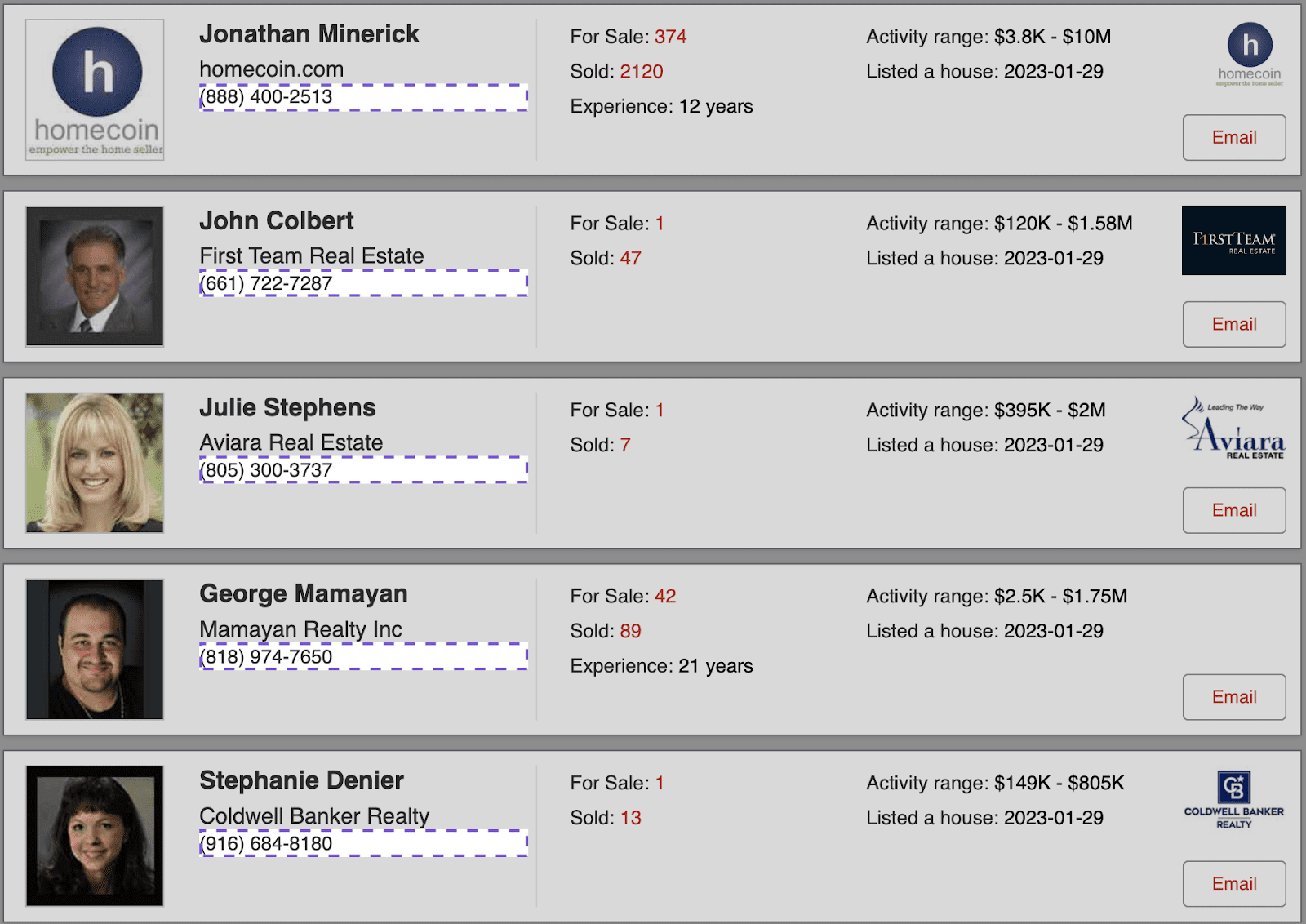
If you have data sources or websites at hand that display lists of emails or phone numbers, you can certainly develop a bot to batch extract this information and organize it into an organized format like a spreadsheet. Also, you can monitor the site in real time to capture new emails or phone numbers as they appear. Example: You can build a machine...
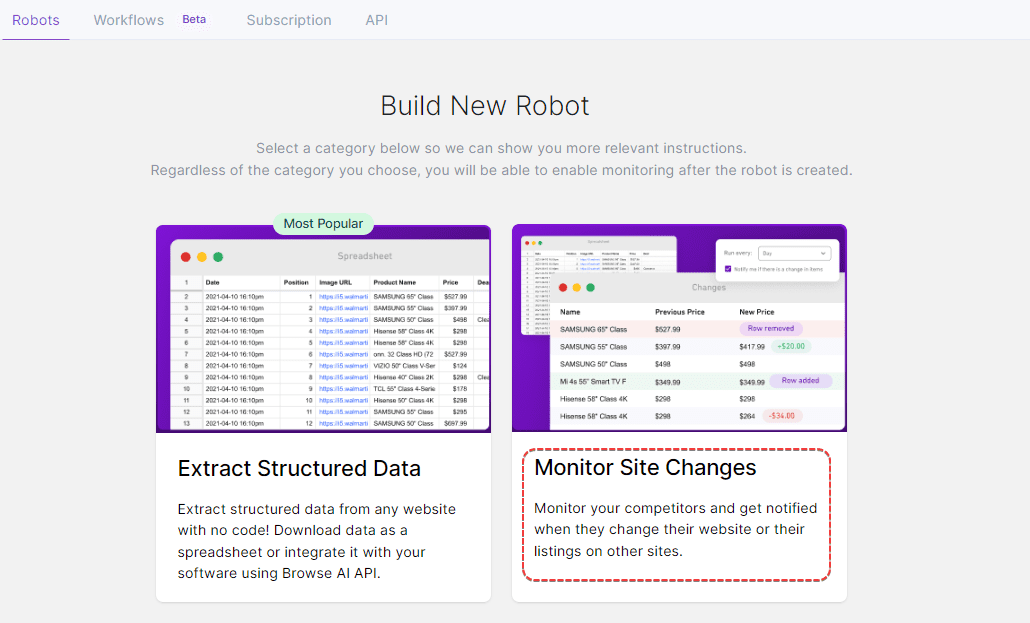
There are two main ways to set up monitoring. 1. The first way is to select the Monitor Site Changes option when building a new robot: After you have finished recording an operation and captured the required data, the system will provide a simple setup wizard that allows you to enter a robot name and a monitoring instance, with the following interface: ...

Our batch run feature allows you to easily perform multiple tasks at the same time. This feature is a game-changer for users who have to deal with massive amounts of data scattered across countless detail pages. Its automated operation eliminates the tedious step of manually manipulating each URL individually, saving you time and increasing efficiency! This...
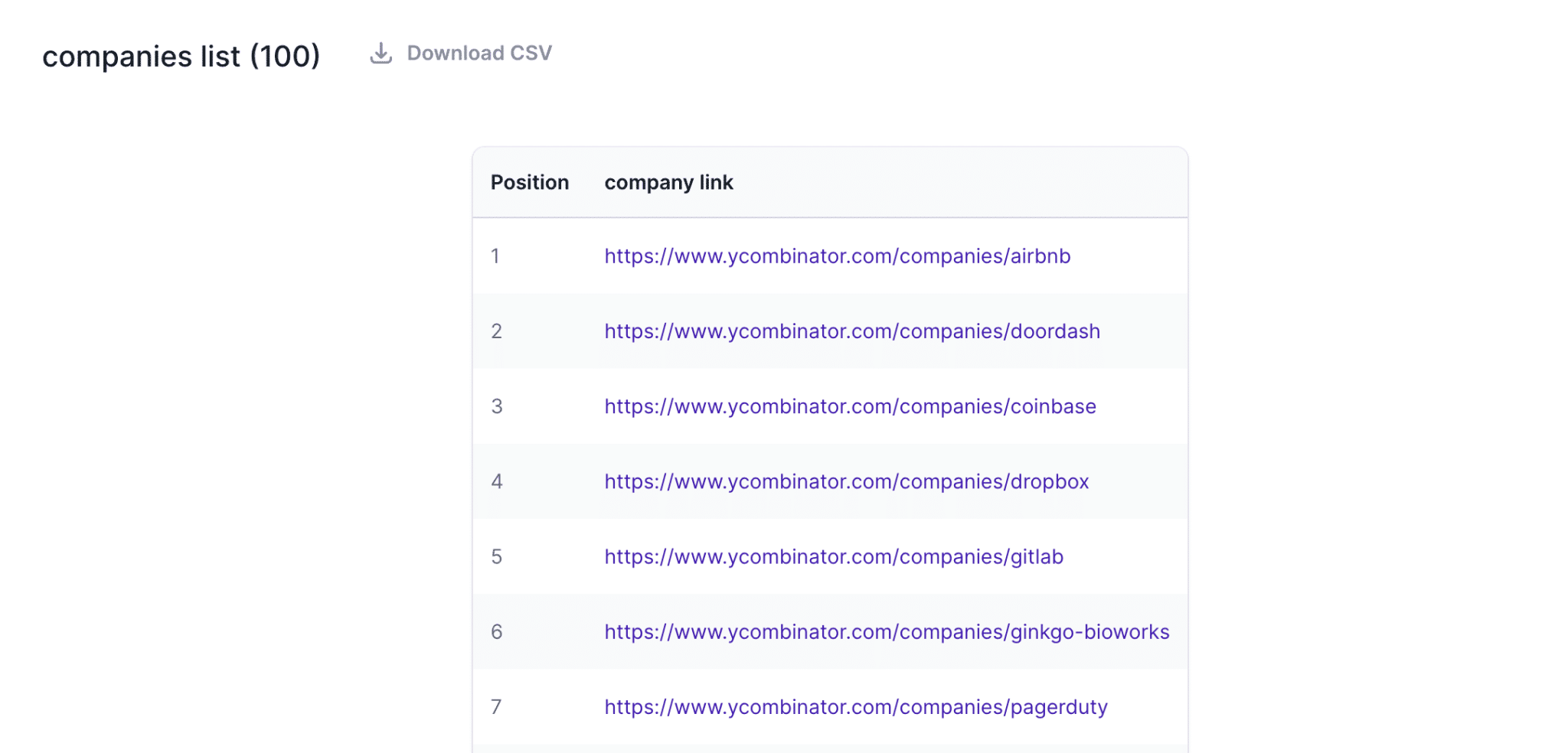
We have prepared an interactive demo for your reference. You can click as many times as you like, use the arrow keys to toggle, or hover at the bottom of the demo to see navigation options for skipping the demo. In the top right corner of the demo, you can enable/disable audio and subtitles, and even select full screen mode 🙂 You can also follow the written instructions below step-by-step:...
Browse AI is designed with the goal of adapting to all websites, but we do have some limitations. Newly built custom bots have about 90% probability of success. The remaining 10% failures are mainly due to the following reasons: 1. We can only solve certain types of CAPTCHA (e.g. ReCaptcha, hCaptcha),...

Build your bot in a few easy steps To train a brand new bot, go to your console, click on “Build New Bot” and choose whether you want to extract structured data or monitor site changes. If you only need to extract data occasionally or once in a while, you should choose the “Extract Structured Data” feature. If you need to extract data on a regular basis...
Top

