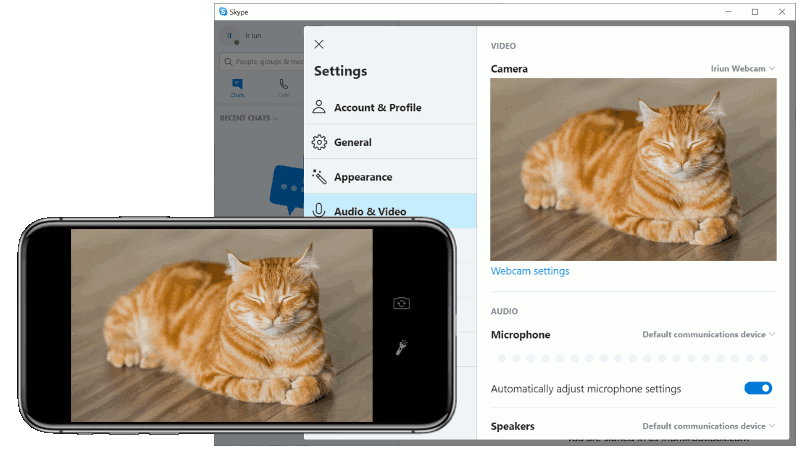
Iriun is a versatile application that allows users to use their cell phone camera as a wireless webcam or virtual reality monitor. By installing the appropriate drivers, users can use their phone's camera for videoconferencing on Windows, Mac, or Linux systems, or use their phone as a virtual reality display for SteamVR games.Iriun offers support for resolutions up to 4K and can be connected via WiFi or USB, ensuring flexibility and ease of use.
Function List
- Use your cell phone camera as a wireless webcam
- Supports Windows, Mac and Linux systems
- Supports up to 4K resolution
- Connect via WiFi or USB
- For video apps like Skype, Zoom, etc.
- Use your phone as a virtual reality display for SteamVR games
- Provides Pro features such as no watermark, manual adjustment of ISO, exposure and white balance
Using Help
Installation process
- Download and install the driver: Visit the Iriun website (https://iriun.com/) to download and install the appropriate driver for your operating system (Windows, Mac or Linux).
- Installation of mobile applications: Download and install the Iriun Webcam app on your phone. The application can be found in the Google Play Store or the Apple App Store.
- connected device: Make sure that your phone and computer are connected to the same WiFi network, or via USB.
- Launching the application: Launch the Iriun Webcam application on your phone and start the Iriun Webcam Server on your computer at the same time.
- Configuring Video Applications: Set Iriun Webcam as the video source in the video application you are using (e.g. Skype, Zoom).
Using Iriun as a wireless webcam
- Starting the Iriun Webcam Application: Launch the application on your phone.
- Starting Iriun Webcam Server: Start Iriun Webcam Server on your computer.
- connected device: The application automatically connects your phone and computer via WiFi or USB.
- Configuring Video Applications: Set Iriun Webcam as the video source in the video application you are using.
Using Iriun as a virtual reality display
- Download and install the driver: Visit the Iriun website to download and install the VR driver for Windows.
- Installation of mobile applications: Download and install the Iriun VR app on your phone.
- connected device: Make sure that your phone and computer are connected to the same WiFi network, or via USB.
- Launching the application: Launch the Iriun VR app on your phone and start Iriun VR Server on your computer at the same time.
- Configuration SteamVR: Set Iriun VR as the display device in SteamVR settings.
Professional Edition Features
- no watermark: There is no watermark in the Pro application.
- manual adjustment: ISO, exposure and white balance can be adjusted manually.
- remote control: The camera can be remotely controlled from the desktop.
With the above steps, you can easily use your cell phone camera as a wireless webcam or virtual reality monitor to enjoy high-quality video conferencing and virtual reality experience.